Thursday, March 24, 2011

WebOS on my Laptop?

I sort of made fun about WebOS on a PC the other day; but after a nice chat with Max, I began to realize that there indeed is a use for WebOS on a PC... on a Laptop to be precise.
  • Imagine a regular Laptop (HP in this case here, if it makes it easier for you :-) )
  • Imagine also that by some magic means you'd tell it to boot WebOS instead of Windows/Linux when you power it on or de-hibernate it.
  • Imagine that you'd have an excellent browser, video player, good-enough email app, good-enough word/excel/powerpoint viewer and editor, ... all that you have on regular iPads or Android-Tablets today.
That'd give you an iPad/Tablet-like instant-on-gadget with a full QWERTY keyboard and excellent battery life.

On the airport, on the train, on your daily commute, ... this sounds a lot easier than Windows for those situations

Some thoughts and pre-reqs on this:
  • You'd need something like a "WebOS key" which you hold to "boot" the WebOS mode.
    Windows must not even start to de-hibernate.
  • WebOS would need to be already running (hibernated to flash, or something like that), not really booted from scratch
  • The laptop would need an extra power-saving mode and maybe clock the CPU down in WebOS mode so save battery life
And if you really need the full enterprisey stuff to create rich corporate boring PowerPoint presentations with pie-charts and everything, you can still boot into Windows, like you used to.

Come to think of it, I might actually want WebOS on my laptopThinkPad.

Sunday, March 20, 2011

Numeric HTML Input Field and other HTML5 goodies

Some while ago I've written a little web app at home that
a) needs mainly numeric input
and
b) is used mainly from an iPod touch / iPad / other mobile device.

On all of those devices, numeric input is cumbersome, because you first have to switch the virtual keyboard into numeric mode.

Yesterday I googled around again for this, and finally found a solution.

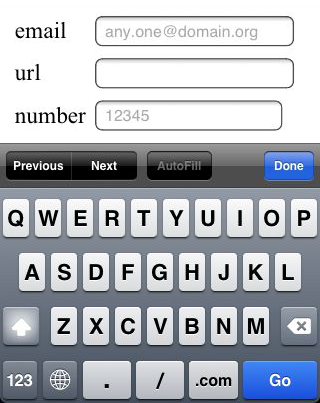
HTML5 has some more types to INPUT fields:

type="email"for email addresses
type="url"for web addresses / URLs
type="number"for numeric input


All of them have the effect on the iPhone/iPad that they switch to a virtual keyboard layout that is optimized for the input, e.g.

The email-keyboard on the iPhone will have the @-sign there
The url-keyboard on the iPhone will have the ".com" key; also the . and the / key will be placed more prominently.
The number-keyboard on the iPhone will switch the numbers in the top row.

On my Android 2.2 [1]  HTC only the number mode works, but it gives you a numeric block / phone-style keyboard, which is even better for numeric input.

HTML5 defines some more values for the type like "date", "week", "month", "time", ... and "range" for sliders, i.e. for numeric values with clear and narrow boundaries, but those are rarely implemented as of today.

See Dive Into HTML5 for an excellent overview including browser-support.

Since all of the above are defined only starting HTLM5, they are not "supported" on many current browsers, but the good thing is, that all browsers, that do not explicitely support them, revert to type="text" for unknown input-types.

Also there is a new attribute placeholder:
Placeholder text is displayed inside the input field as long as the field is empty and not focused. As soon as you click on (or tab to) the input field, the placeholder text disappears. (from Dive Into HTML)

Sort of like the search box in Firefox.

So back to my initial problem, defaulting to numeric input on mobile devices.
Just replace  input type="text" with input type="number", there is no down-side to this.
It is user-friendly on mobile devices, and works like it used to on all other browsers.

--
[1] I'll check 2.3 and 3.0 once my PC is fast enough for the SDK.

Saturday, March 19, 2011

Android SDK and a new PC ?

So now that I finally moved to Android, I installed the Android SDK on my home computer plus the NetBeans plugin.
I seems to work fine, I can get the Hello World sample to compile and package and it shows up in the emulator.

The problem is that my 8 years old (!) PC with only 1.something GHz and 1GB RAM is definitely too slow and weak for this. Booting Android (2.2) in the Emulator takes longer than actually buying, charging and starting a physical Android device ...

So I guess I need a new PC now as well..

OK, I wanted to get a new one anyway, come April, so that my current PC can actually celebrate it's 8th birthday...
So proud...

Friday, March 18, 2011

So long...

So long, Nokia, and thanks for all the fish handsets.
Had a great time and fun with Nokia handsets for the last 14 years or so ... But now I'm leaving.

I'm now proud owner of my own HTC Desire Z (not only the test equipment, thanks again Richie).

Sunday, March 13, 2011

Book: iWoz - by and about Steve Wozniak

A couple of weeks ago I read iWoz: How I invented the Personal Computer and had fun doing it by and about Steve Wozniak.
Only I forgot to blog about it then. So here you go.


Fascinating book... well, when I say that, it will not win the Nobel prize, but it is so full of memories.
That is,
  • if you ever did something in hardware;
  • if you ever (like I did at TechU Vienna) designed some chips (integrated circuits - not crisps or fries)[1] 
  • if you ever designed a small computer system, with CPU, memory, and all the device controllers
  • if you ever had to write BIOS functionality or at the operating system level
  • if you ever wanted to do more with some gadget than the manufacturer intended you to do
  • if you ever spent[2] days optimizing some machine instructions / assembler programs to use 2 cycles less
If you ever were a geek, if the name Steve Wozniak has any meaning to you... go and read this book.
An experience quite close to time travel

--
[1] by the way my first contact with SunOs
[2] read: wasted

Saturday, March 12, 2011

And Nokia?

Nice observation (by my wife, actually), that - until half a year ago - we used to be a pure Nokia family... for years.
Me, her, the twins... only Nokia.
If there is such a thing as a Nokia fan boy - I probably was one.

Now we are pure Android family (2x HTC, 1x Samsung, 1x Sony Ericsson; see here and here).

IMHO, this says a lot about Nokia.

Friday, March 11, 2011

I Became Assimilated...

So, the (Android) Collective got me.
On Wednesday I got a HTC Desire Z to play around with...

Tomorrow I'll finally buy one.

Resistance has never been more futile.
--
btw: Thanks, Richie.
btw2: and that's about the most StarTrek references you'll ever get from me.
btw3: Thanks, max.

Friday, March 04, 2011

Sort order ?

I wonder what the (intended) sort order was here ?

This is the iPhone/iPad app from Austria Airlines...

Is it really that hard ?
How can you sort on the first letter (obviously, because it is sort of grouped by the first letter) but not on the rest ?
The list is neither sorted in English, nor local language, nor the airport codes.

I don't see any sort order here (apart from the initial letter).

Odd.
Stupid.

Monday, February 14, 2011

Dinosaurs mating

So... Nokia and Microsoft seem to mutually feel that they need each other to survive in the mobile / smartphone world.

I guess there is some truth to that, and it will play out to some extent:
  • Microsoft needs every hardware manufacturer they can get for their Windows Phone 7.
    In that regard, Nokia is very important and helpful to them: they still do have a huge base of followers, and they do have the operator connections.
  • Microsoft will gain a lot by the uni-lateral exclusivity: every Nokia smartphone will come with Windows Phone 7. So if you want Nokia (and a smartphone) you have to go Windows.
  • Nokia needs a good OS... Symbian was OK  - years ago, but would never stand up to iOS, Android or Windows Phone.
  • On the other hand: there's a good chance that Nokia smart phones will become just another HTC/LG/... phone.
There are still good reasons to choose Nokia:
  • They have robust hardware design - even Windows can't take that away.
  • They do know a lot more about radio and the phone functionality than Apple and the Android folks combined - but lets see if this can make it into a Windows phone
  • If you only want a feature phone, Nokia (with Symbian) is still an excellent choice.
What I'm not really sure about is: Do people explicitely want an iPhone or an Android phone ... or do they "just" want a nifty smart phone, and don't really care about the OS (and app ecosystem). The lackluster 2010 sales of Windows Phone 7 (despite all the push from Microsoft and others) and the decline of Nokia Symbian smartphones indicate that it really is about the OS (iOS, Android).

Let's see.

And one more thought:
Remember that Palm with the Treo once thought the found their salvation by giving up PalmOS and being embraced by Microsoft?

Sad.

Sunday, February 13, 2011

On podcasts: Not Radio!

Yesterday I had to explain "podcast" to my in-laws, who are neither very computer nor internet savvy.
We[1] used the radio analogy, since we both are actually listening to a couple of radio shows / podcasts from Ö1 (national radio in Austria) her parents know from the radio.

Now podcasts and radio share many rules like
  • audio quality & leveling
  • pace of speech
  • structure and complexity of sentences.
Still a podcast is not a radio show.

So please:
  1. Avoid references to dates like "this Sunday" or "Tomorrow you will hear..."
    because not everyone (I'd even say hardly anyone) listens to your podcast on the day it was published.
  2. Also do not use the intro for the next episode as the outro of the one before.
    This might be OK on radio, but it is annoying when you listen to the episodes of one format in sequence.
  3. And bear in mind that the level of expertise of your audience is probably better on a podcast than on radio, at least more homogeneous.
    So, know your audience and their knowledge. Don't talk to newbies if your audience are hackers & nerds.
  4. Also remember: most (if not all) of your podcast listeners know the internet and how to use it.
    They already managed to subscribe to your podcast! So if you have additional material just mention the URL (or just the domain) where your show resides... This is where you should place all the show notes, episode list, additional presentations or documents or wikis. Your listeners will easily find it.
  5. Then again: don't assume they know your show's homepage.
    They might have found your podcast on iTunes or through other aggregating sites/tools... So be sure to mention your home base once in a while.
  6. Final one for today: There are no links in podcasts.
    So don't read out or spell long URLs. I can't write them down when listening to a podcast anyway. Consider a rather unique search term and an additional hint for finding said URL in the search results. And provide the link in the show notes.
Thanks for listening; next week on "on podcasts" you will... oops

--
[1] actually my wife did half of the explaing, since it all began by her telling how she is using her Galaxy S to listen to podcasts.

Monday, February 07, 2011

Sharing Thunderbird Address Books... some experience

This is a follow up to my post on Sharing Thunderbird Address Books Between Computers with Dropbox.
I've been using this for 3+ weeks now, and here's the experience.

Overall it works quite well, however:
  1. I noticed 2 occasions where the filesystem link from the address-book in the Thunderbird profile to the one in the "My Dropbox" folder got lost. The abook.mab in the profile folder then all of a sudden is a real file with not connection whatsoever to the dropbox file.
  2. Dropbox deteced one replication error and marked it accordingly, by renaming the "older" file as "abook (computername's conflicted copy date).mab"

In both cases replication of the file to and from other computers then fails.
The latter is easy to avoid - at least in my case: Don't have Thunderbird open at the same time on both computers.

Sometimes however, this is tricky, because you need Dropbox to replicate the file before you start Thunderbird on the other computer. So e.g. when you hibernate one PC whilst Thunderbird is still running (keeping the abook.mab file open and locked), the file will not get uploaded to Dropbox. When you then start Thunderbird on the second computer and modify the address-book... voila... replication conflict.

I still don't know what caused the link failure from problem #1. Will continue to monitor this.

Thursday, January 27, 2011

OpenOffice 3.3

OpenOffice 3.3 has finally arrived.

Not Oracle OpenOffice (the former StarOffice), not LibreOffice (the true Oracle-free open source spin off of OpenOffice), but good old / plain old OpenOffice from openoffice.org

Installing as I type this...

Wednesday, January 26, 2011

Power of XSLT

Just recently we changed the ERP system in the company I work for. Amongst other (more important) things the structure and format of product quotations has changed significantly.

The good news however was, that we finally had an XML export of those quotes.

It only took my 30 minutes to create an XSLT Template that would not only convert the XML to a really readable form (in HTML) but also add nifty features like totals per product type etc etc.

Quite frankly, it took me about 7 minutes to create the pure formatting XSLT and the remaining 23 minutes to figure out how to do sums in XSLT.

So, the two things I learned from this little exercise:

1. How to format a number using XSLT:

Use the format-number function as in:

<xsl:value-of select="format-number(amount, '#.00')"/>


2. How to add (sum) values (node-sets to be precise)

You have to use the sum function as in:

<xsl:value-of select="format-number(sum(//lineItem[@isSupportLine='true']/price), '#.00')"/>

For me this very line shows the power of XSLT:

It is adding all values of the "price" element of all "lineItems" that have an attribute "isSupportLine='true'".
In other words:  build the sum of the price of all support lines in the quote.

Or in SQL: select sum(price) from lineitems where isSupportLine="true"

Friday, January 21, 2011

On podcasts - When, Where and How?

I'm starting a mini-series here where I jot down some ideas and observations on podcasts.
I'm not a podcast producer, but I do listen to some. I'd say 10+ hours a week.
So this will be entirely from a consumer/listener perspective... my consumer/listener perspective.

Here we go:

When, Where and How?
I listen to podcasts
  • in the car
  • sometimes on the train / subway
  • on the treadmill in the gym
Interestingly, I don't listen to podcasts when on the stationary bike at home... (this is when I watch TV shows like Sopranos, etc etc).

My "listening span" is everything from 10 minutes to 4 hours in a row.

Recently I also found myself going back to reading on the train / subway instead of listening to podcasts. Or let's say the ratio reading / listening shifted back to 70/30 from (10/90).

One of the reasons is, that while listening to podcasts I start reading emails on my mobile or playing Bejeweled on the iPod...because I just cannot sit and only listen. Talk about ADHD :-)
Driving the car, or exercising is seemingly enough activity.

Also, going back from listening to reading is somehow odd: take the distractions on the train... just looking up when someone takes the seat next to you. Add to that the interruption when changing trains; all this does not really allow for a smooth reading experience, whereas they are no problem when listening to a podcast... Still, I seem to prefer reading.

So, lesson #1: As your podcast listener, you do not have my undivided attention, well not all 100%. But a fair share. Structure your contant and pace around that.

Sunday, January 16, 2011

Sharing Thunderbird Address Books Between Computers with Dropbox

In the previous post I described how to synchronize your Thunderbird signature (file) across computers using Dropbox.

This was a fairly easy task, because Thunderbird let's you specify the signature file as an absolute path, so you can put your signature anywhere on your computer.
For whatever reasons, the address book has to reside in your profile folder.
So if you want to synchronize Thunderbird address books across computers using Dropbox, this is a bit more tricky.

First, we have to somehow have the address book file in the "My Dropbox" folder, and still in the profile folder.
Luckily, Windows XP (and later) do have links in the NTFS filesystem - contrary to what most people think/know.
Technically they are called NTFS junction points, but usually referred to as links.
You can create them with the FSUTIL utility.

So what we'll do is.
  1. Find the "master" address book
  2. move it to the Dropbox folder
  3. replace the original file in the profile folder with a link to the file in the Dropbox folder
  4. repeat step 3 for all computer.
So, assuming you already did register for Dropbox and install it, here are the details:
    1. In Thunderbird check the name of he address book you want to synchronize. In the Address Book window, select the address book of your choice and then properties. The only property there is the name.
    2. In the Config Editor, locate the file name for your address book. This can easily be done if you filter the view on "ldap_v2.servers.*.descr". This will list all the address book names you have, including the one we are looking for (from step #1).
    3. Find the id of your address book.
      It is is right behind "ldap_2.servers.".  Something like "pab" or "default".
    4. Once you have that identifier, you can get the file name from "ldap_2.servers.yourid.filename". It is most likely abook.mab. [1]
    5. Then locate your Thunderbird profile folder.
      This is (as a default) in the Thunderbird folder of your personal Application Data directory. The fastest way to get there is via Windows Start Menu → Run → "%appdata%" (literally with the percent signs). Then go to Thunderbird, then Profiles and then pick the profile you want to modify (if you have more than one).
    6. Now find the file from step #4.
    7. Be sure to exit Thunderbird now, so that all files are closed and available to you.
    8. Move the file from step #6 to your "My Dropbox" folder (again, this can be easily opened by double clicking on your Dropbox icon in the task bar).
    9. Open a command line (Start → Run → "cmd.exe" ) and change directory to your profile folder form step #5.
    10. Find the "My Dropbox" folder in your file system. It's quite close to the Application Data folder. Try something like a "dir %homepath%\abook.mab /S /B" to find the exact location of the file.
    11. Create the symbolic link with the following command:
      fsutil hardlink create abook.mab "..\..\..\..\My Documents\My Dropbox\abook.mab"
      Before you do this, you might want to check with dir, if the abook.mab file can really be found with the above path. Correct your path as appropriate. You can also use the absolute path from step #10.
    12. With a "dir abook.mab" verify that the "logical" file is back again with the correct size.
    13. Start Thunderbird and verify that your address book is available and correct.
    14. Go to computer #2 
    15. Repeat steps #1-12 as above, just do not copy the abook.mab (or whatever the name is) to the Dropbox folder. Only delete (or rename) it in the profile folder, before your create the link with fsutil.
    16. When you start Thunderbird you should now have all the addresses from computer #1 available.
    17. Repeat #15 for all remaining computers

    ONE BIG CAVEAT:
    I haven't been using this method for long, so I can't really say how stable this works, especially if there are "replication conflicts", i.e. when you update the file on both computers before Dropbox has a chance to synchronize. Should there arise major problems with my setup, I'll post them here.

    Comments section is of course open for your findings.

    --
    [1] in the following paragraphs I will - for brevity - only call it abook.mab; please substitute your file name as appropriate.

    Saturday, January 15, 2011

    Sharing Thunderbird Signature Between Computers with Dropbox

    Granted, having the signature file for your e-mail in sync between two or more computers is not amongst the top IT problem of the century.
    However, if you change your signature frequently (because you include some simple banner message or seasonal greetings, etc etc) it suddenly becomes important.

    In my case this is between my company laptop and my home desktop. Both have the same IMAPS access to our corporate mail server. But as IMAP and Thunderbird[1] go, you are in sync with your mailboxes, but not with all your other data, like address book and signature.

    Let's take a look at the signature first, since this is easier (from a Thunderbird perspective).

    First we need some file location that can always be accessed from all participating computers. Preferably not only online, but also when offline.

    Dropbox is the ideal solution for that: it synchronizes folders of your computer to the (cloud) storage of Dropbox. From and to multiple computers. That's the trick here.

    Let's for this use case here ignore all the photo album and public sharing or collaboration features dropbox offers. We just use it for file sync to the cloud (and back again).

    So obviously, you have to register for Dropbox and install the software on all participating computers.
    [waiting for you to do so ... ]

    The default folder is a newly created folder called "My Dropbox" in your home directory. This folder will be in sync across all computers, then.
    So let's put our signature file there:
    1. Start on the computer, where you have the most appropriate or up-to-date signature file.
    2. In Thunderbird go to your account settings (Tools >> Account Settings) and pick your account there.
    3. Check where you current signature file resides... 
    4. Go there in Windows Explorer and copy (or move) the file to your Dropbox folder.
      You can easily open your Dropbox folder with a double-click on the Dropbox icon in your status bar.
    5. Once the file is there, on the Account Settings page change your signature file to the new location. 
    6. And then - in Thunderbird - create a new email to check if it has been picked up correctly.
    7. Now the other computer. The signature file should already be in your Dropbox folder. If not, trouble-shoot that first.
    8. Once you find the file there, only change the location of the signature file in Thunderbird- as above - to the one in the Dropbox folder.
    9. Again, create a new email to verify.
    10. Repeat for all remaining computers...
    Now you can update your signature on any of those computers, and it will be picked up by the others.

    Neat, isn't it.
    And it didn't cost us a dime.

    I started this about 2 months ago and had to change my signature (a least) 3 times or more in the meantime. Works like a charme.

    The synchronization of the address book is a bit more complicated, and will be covered in a separate blogpost.

    --
    [1] and other IMAP clients

    Thursday, January 13, 2011

    X10 mini pro replaced

    As I reported, my son's Sony Ericsson X10 mini pro did not charge. The A1 shop accepted the complaint as a DoA and today we got the replacement device (was out of stock).
    Charges as expected.
    Insert SIM.
    Enter Google details.
    Sync.
    Back again.

    Nice....

    Tuesday, January 11, 2011