Showing posts with label development. Show all posts

Saturday, January 03, 2026

Bad Ideas with Obfuscation

All my release versions of my Android apps are obfuscated with Proguard - which us quite usual.

However, it is a bad idea in some circumstances:

When you rely on reflection.

Sounds rather obvious, but sometimes you "dont know" this happens. Like when you serialize and deserialize JSON/XML data ("Rest") via Jackson
It is obvious, isn't it, but a couple of years ago it took me ages to find.

When you rely on class names.

Also rather obvious. What I did was have a listener class that will be asked if it wants to receive certain updates, and one of the parameters was the Class data that changed. Think of it like "Do you want to know if any of those Favorites changes?" and passing the "Favorite" class as a parameter,.
The listener has a 
public boolean wantsUpdatesFor(Class<?> clazz)
{
return Favorite.class.equals(clazz);
}
Worked fine in debug, didn't work in release. The main difference was of course obfuscation.
I removed it for those classes (or rather the whole package of them) et voilĂ  worked again

Conclusion

If you find something works fine in debug but not at all in release, it's not always the emulator or its Android version or something like that, look at obfuscation was well and maybe remove it for a quick test.
(Or create a no-obfuscation build variant for that).

Sunday, December 28, 2014

How to Backup a Broken Nexus 5 via USB

So, the other day I decided to drop my beloved Nexus 5 - display first - on a concrete (or stone, whatever) floor, right in the middle of Vienna's most busy shopping street. And got a result like this:

Not only was the glass broken, but the display itself was defect in large areas as well. Touch of course did not longer work.

I visited a repair shop just down the road, and guess what, they only have Samsung and Apple spares on stock, and I got the tip to use a cover next time. Yeah right, Thanks a lot.
So with the broken display and all, I decided to purchase a new one (via Play store), which is en-route to Vienna right now.

In the meantime I was trying to save whatever I can from the old device. My Nexus is unrooted without even a hint of Titanium Backup or the likes activated. Luckily I enabled the developer options as a first step after I got it.
So I connected it via USB to my PC and saved whatever as accessible this way.

I have the Android Developer Kit / SDK Tools installed on my PC, so I have adb at hand - the Android Debug Bridge, which is needed for the following steps.

Then I tried an "adb backup", which prompted for a confirmation on my device.
Of course, with no touch and the broken display I could not enter one.

So, the ultimate hack of 2014 to the rescue:

Step 1.
Connect a USB mouse via USB converted to the phone.
Yes, I really wrote that. A regular (PC) USB mouse. And you'll also see a regular mouse pointer on the display then. How cool is that.


Unlock the phone by drawing the swipe pattern with the mouse.

Then immediately (with the mouse again), go to settings and change the pattern to a PIN.

The PIN can be easily sent via USB from the PC, the pattern less so. Now we can disconnect the mouse again.

Step 2.
Connect the phone to the PC again.

Run "adb devices" just to be sure you are connected (all adb commands are of course from the windows command line or whatever your "host" operating system is).

If you are stuck with the lock screen, you need to swipe up with the following adb command[1]:
adb shell input swipe 500 1900 500 900

Then you should get the PIN prompt.

Unlock it with a sequence like this:
adb shell input text 1234 
adb shell input keyevent 66

The first line sends the PIN (1234 in this example), the second line sends the ENTER after it.  The event codes can be found in the Android Developer docs or here. The POWER, ENTER, BACK and HOME keys/events are quite useful :)

Step 3.
Start the backup with
adb backup  -apk -obb -shared -system -all
(or whatever options you require)
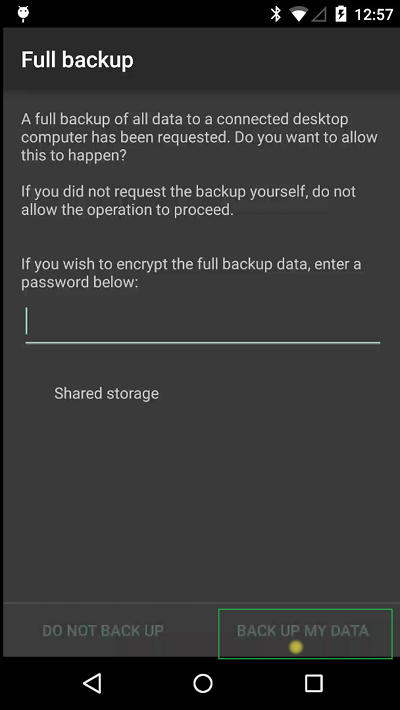
Then you'll get the full backup confirmation prompt, which needs to be answered again with the help of  adb shell input commands.
You can set a password with
adb shell input text password  [2].

However, it does not accept the keyevent 66 to confirm this dialog; this literally inserts a new line at the end of the password.
We have to tap on the "BACK UP MY DATA" button at the right bottom of the screen. Which leads us to

Step 4.
Luckily you can also emulate touch events via USB. Some research, some guessing, and trial and error showed, that this button is roughly in the area of coordinates 800,1750   (so in the right third and just above the button bar). The display is 1080x1920 in size, so that was easy to guess and test.
So we send a
adb shell input tap 800 1750

And the backup starts.
Magic.

Tomorrow I shall hopefully receive my new Nexus 5 (if the UPS guy for once delivers on the first attempt) and then I can report on how the migration to the new device works.

--

[1] The screen is 1080x1920; so the start position for our swipe is 500/1900 , i.e. quite in the middle, almost on the bottom, the end is 500/900, i.e. quite in the middle, quite in the middle, and almost perfect swipe to unlock.
[2] substitute your real desired password for password here, right after text.

Sunday, July 20, 2014

USB Debugging a Nexus 5

It is described all over the internet, so let me repeat it here :)

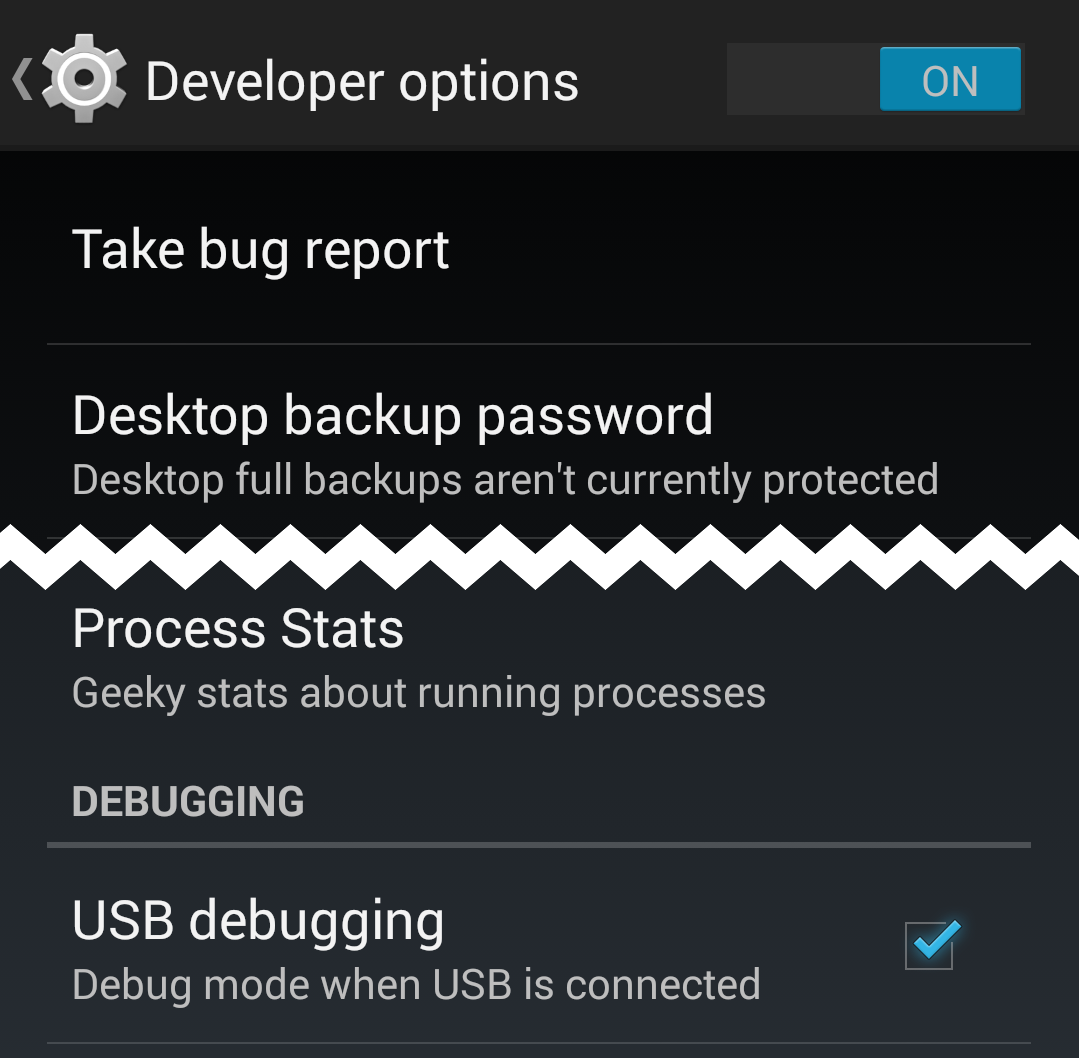
To USB debug your Nexus 5, first enable USB Debugging in the Developer options.
If you don't yet have the developer options visible in Settings, then enable them like this:

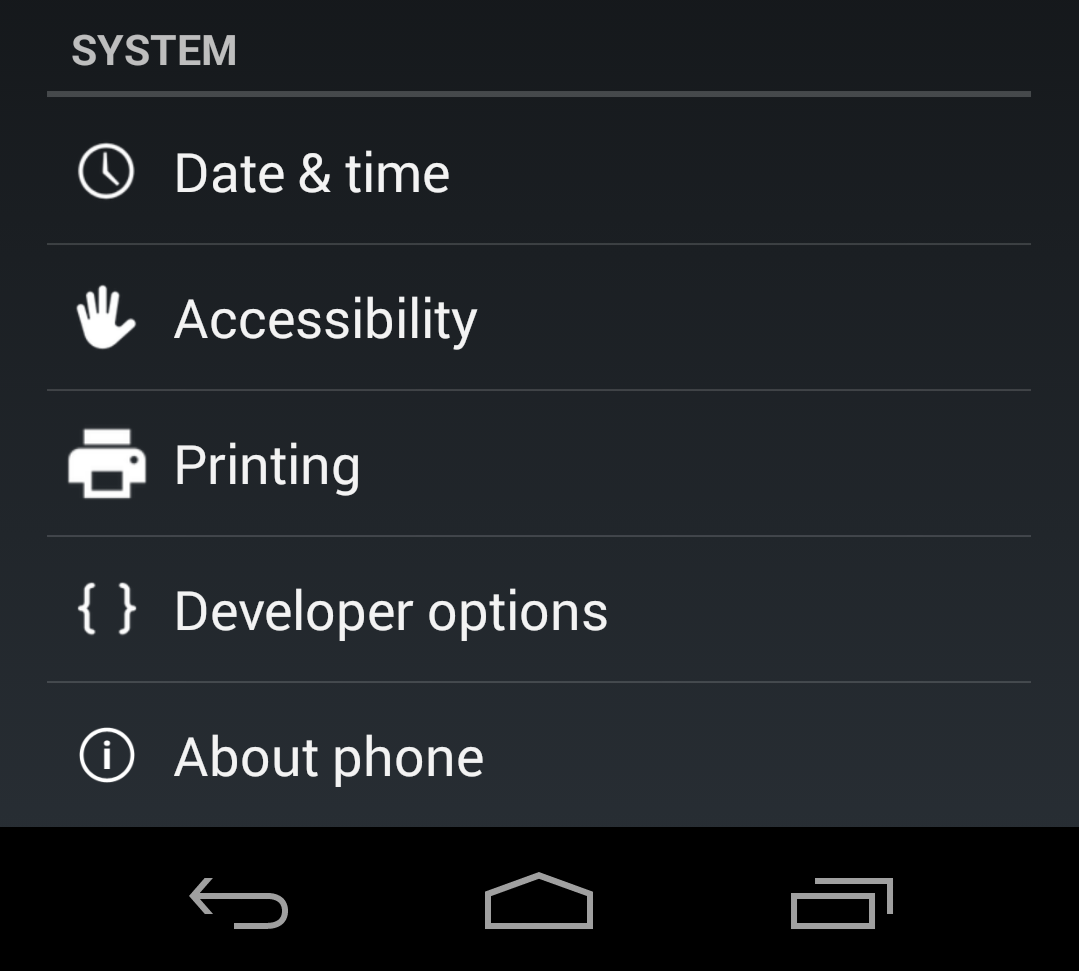
Go to Settings and About Phone, then scroll all the way down to "Build Number" and then tap 7 times on the item "Build number"  (yes, weird)


Once done, in the Settings menu under the Developer options enable "USB Debugging" and connect to the PC via USB.

From a command line check if you can see the phone with "adb devices".
If none shows up, you might want to kill any running adb.exe instance from the task manager and retry.

If this still fails, open the Windows Device Manager, and look for the Nexus device right at the top under "Android devices".

If this shows an error or warning, you need to install the proper driver.
Right-click on the "faulty" android entry in the list and select "Update driver software". Point the update to the android-sdk path on your computer.
So check where you installed the Android SDK into. From the SDK path it is  under extras\google\usb_driver
(e.g.  %appdata%\..\Local\Android\android-sdk\extras\google\usb_driver)
It should find the "Android Composite ADB Interface" driver.

Once this is installed, your Nexus 5 should be visible to the debugger. Again, kill any running instance of adb.exe first, just to make sure)

If not, google is your friend :)

Saturday, May 04, 2013

How not to share on Android

This morning my wife told me that one of our favorite restaurant guides for Vienna (Wien, wie es isst) now has an Android app. I knew this app from the iOS version (earlier on my iPod touch) and I had not been impressed by it - largely because of the required paid subscription and lack of features.

Well, half an hour later she found a review of a new restaurant in Vienna, which we decided to try soon, and she wanted to make a note of this (address, phone, ...) in Evernote.
When I saw her typing like there was no tomorrow, I asked here, why she did not simply share this restaurant from the guide app to Evernote.

Well, turns out, you can't.  Because those (strong language deleted here) developers decided not to properly implement the share functionality (with the Android SEND intent), but implement their own.

And guess what happens then: you only implement a view of the share functions / targets... and this is not what Android is supposed to be.

Of course, we can only find Facebook, Twitter and E-mail there, because the developer had no clue that I had e.g. Remember-The-Milk on my smartphone; or Evernote, or Google Keep for that matter, or any other app that might want to receive this information.

Simply freaking share with the SEND intent, please! It is easier, less effort (for the developer) and will actually fit the user's needs and expectations. That's why it is there.

Wednesday, May 01, 2013

One of thoooose popups


So, which is it...
Cancel or Stop ?


Well in this case at least it can be resolved: Cancel cancels the stopping of the download, i.e. resumes the download.

Developers and Designers, listen to me!
You have to pay more attention to  wording and/or translation.

Wednesday, August 17, 2011

Mozilla's new version policy

With Firefox 4 Mozilla introduced their new release policy, which basically means a new release every quarter, and also changing the major version number with every such release. Thus we got Firefox 6 only yesterday.

Since I'm not an enterprise, I do not have a problem with quarterly releases... some IT organizations do.
Also, I personally couldn't care less if they call their releases 4, 5, 6, 7, or Bob, Frank, Josephina, ... or IV/2011, X/2011, Fall 09... whatever.

If it were not for the add-ons... Usually you test an add-on you develop against a certain release, and also declare this in the install.rdf:

<!-- Thunderbird -->
<em:targetApplication>
<Description>
<em:id>{3550f703-e582-4d05-9a08-453d09bdfdc6}</em:id>
<em:minVersion>1.0</em:minVersion>
<em:maxVersion>5+</em:maxVersion>
</Description>
</em:targetApplication>

In the past you knew that the architecture would be stable for a major release, so if you'd tested successfully against a late Thunderbird 3 beta you could increase the maxVersion to "3+". And you'd not have to bother for the next 18 month, until the next major version would go to alpha or beta, you'd have a look at it, test your add-on against it, maybe a tweak here or there, and voila, maxVersion++; and publish it.

Now, you have to do this every 3 months; since everything is now a major version, you either have to declare the add-on as universally compatible (and it might break with version 8) or you have to update the install.rdf every 3 month. Even if there is no major change in Firefox or Thunderbird (as this week with v6).

From a users perspective the same happens, with every update you'll see a couple of add-ons as "incompatible" and disabled. And you either go to your profile and patch the install.rdf (which is what I do) or you have to wait a couple of days (at least) until the developers publish the new "version".

True for both Firefox and Thunderbird.
Somewhat annoying. There's a reason why the separation of major and minor version number has been introduced a couple of decades ago...


Saturday, June 25, 2011

Platformness, part two

I recently claimed that a true platform has to protect it's developers from (ridiculous) claims of third parties (indemnification), the same is of course try in the opposite direction:

When an ecosystem around this platform evolves that adds new and important features to this platform, the platform itself should not step in and re-create those add-ons.

Current (counter-) example: Twitter just added their own photo sharing service, thus rendering e Twitpics and Yfrogs obsolete... who were instrumental in Twitter's success during the last years.

In other words: a platform shall not compete with (or against) its developers.
I'd like to call this quality trust.

Saturday, June 04, 2011

Platformness

The recent (if not still ongoing)  Lodsys v. Apple fight over patent infringement around in-app purchase revealed another important criteria for something to be a platform: indemnification.

Apple (or any platform provider) has to protect developers for their platform from such claims - whether they are justified or - as in this case - just patent trolls.

For a true platform this must never be burdened on the developers.

Hope Google/Android will follow Apple's example.

Saturday, March 19, 2011

Android SDK and a new PC ?

So now that I finally moved to Android, I installed the Android SDK on my home computer plus the NetBeans plugin.
I seems to work fine, I can get the Hello World sample to compile and package and it shows up in the emulator.

The problem is that my 8 years old (!) PC with only 1.something GHz and 1GB RAM is definitely too slow and weak for this. Booting Android (2.2) in the Emulator takes longer than actually buying, charging and starting a physical Android device ...

So I guess I need a new PC now as well..

OK, I wanted to get a new one anyway, come April, so that my current PC can actually celebrate it's 8th birthday...
So proud...